Screen Editor
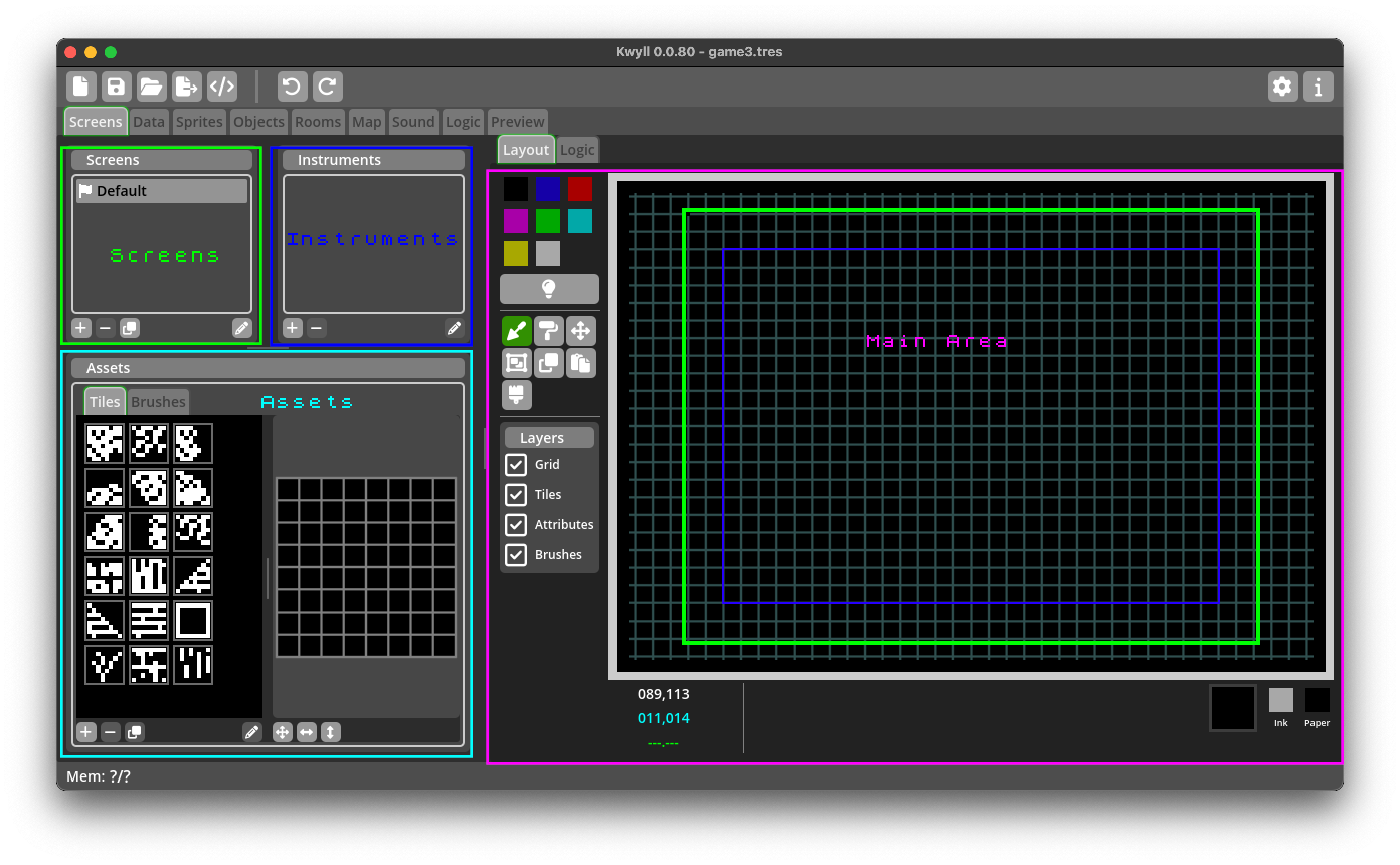
The Screen Editor is where in Kwyll you get to create and modify Screens. It is organised into four main areas, the Screens List, the Instruments List, the Assets Panel and the Main Area.
The Screens List
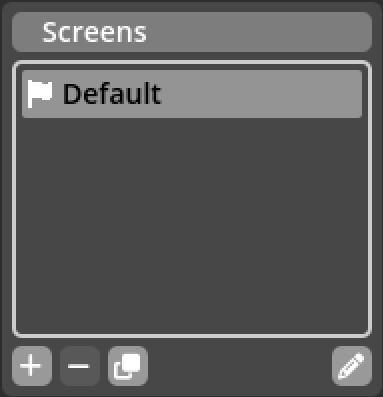
This is where you can select, add and remove the various screens that you have in your game. The toolbar below the list includes buttons on the left hand side to create a new screen, delete the currently selected screen, and duplicate the currently selected screen. And on the right hand side, it also has a button to edit the screen properties.
Screen Properties
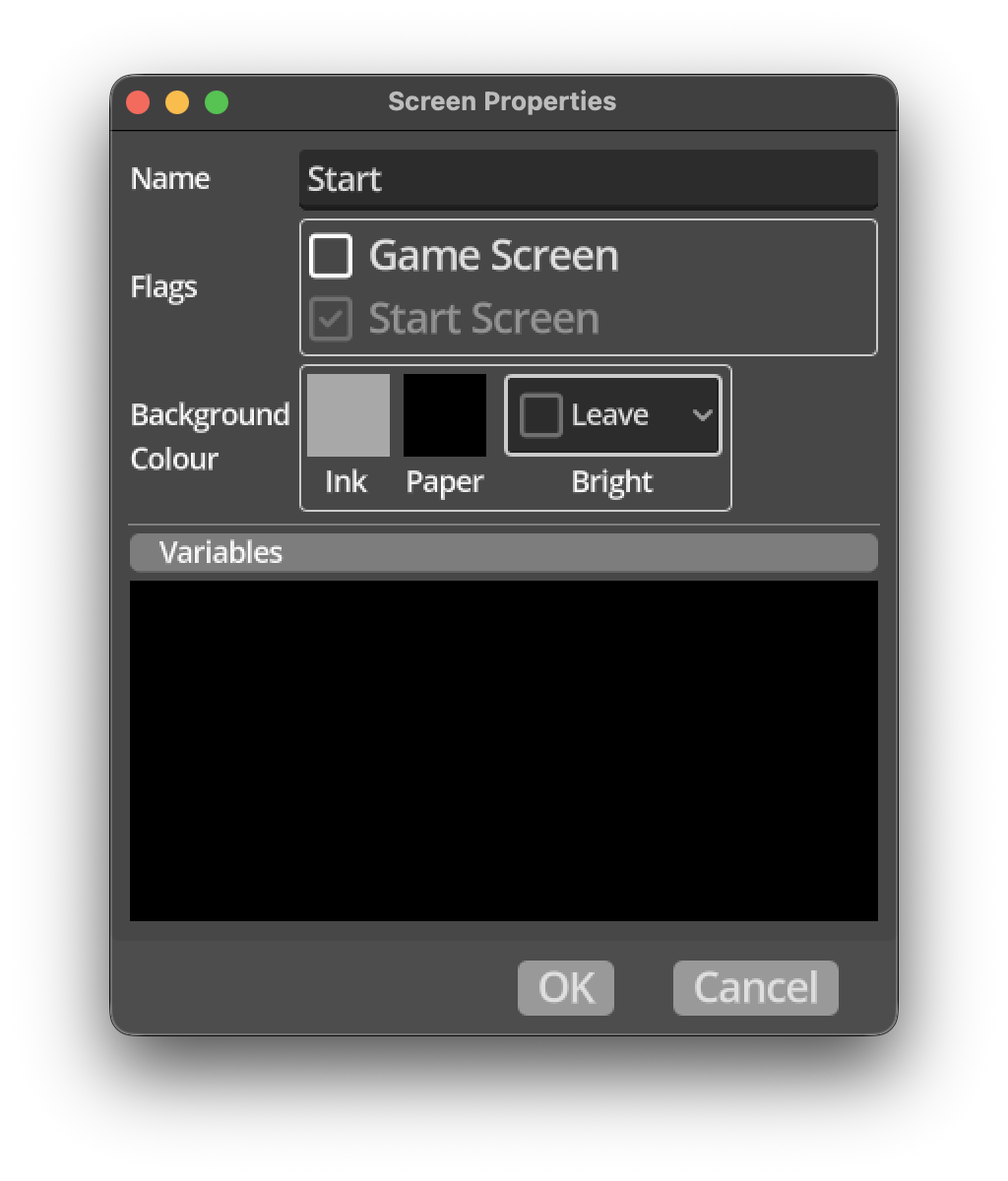
The Screen Properties dialog is shown when double clicking a screen in the screens list, or clicking the screen properties button. This is where you can modify various properties of the currently selected screen that are not editable in the main area layout and logic tabs.
- Name
- The name of the screen. This is used in logic for example when selecting to switch to a different screen, the Switch Screen node will list the screen names in a dropdown control to make it easy to select which screen to switch to.
- Game Screen?
- This toggles whether the screen should contain the game window or not. Typically only one screen in your game will have the game window included, but it is possible to have it in multiple screens, even in different places on the screen. Some screens, such as a menu screen, a help screen, etc. will not require the game window to be shown, they will consist entirely of instruments.
- Start Screen?
- This toggles if the screen should be the initial screen visible when starting your game. Only one screen can have this flag set, so selecting it here will automatically clear it on all other screens. The start screen is also shown in the Screens List with a flag icon.
- Ink, Paper and Bright
- These combined set the default colours for the current screen. Instruments can override these values. The paper colour is used as the background to the entire screen. These values are also used as the default colours for tiles in the screen tilemap unless replaced by painting attributes in the tilemap, or by assigning colours to tiles.
- Variables
- In this section you can set the default values for any variables declared in the logic for this screen. Each screen can have its own logic, and in that logic you can declare a number of variables, they will be listed here for you to set the initial value that will be assigned to them when the game starts or restarts.
The Instruments List
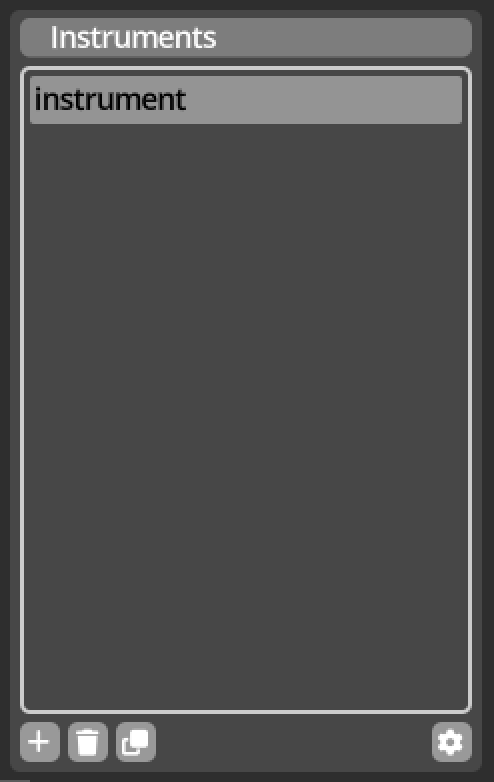
This is where you can select, add and remove the various Instruments defined in the currently selected screen. The toolbar below the list includes buttons on the left hand side to create a new instrument, delete the currently selected instrument, and duplicate the selected instrument. And on the right hand side, it also has a button to edit the instrument properties.
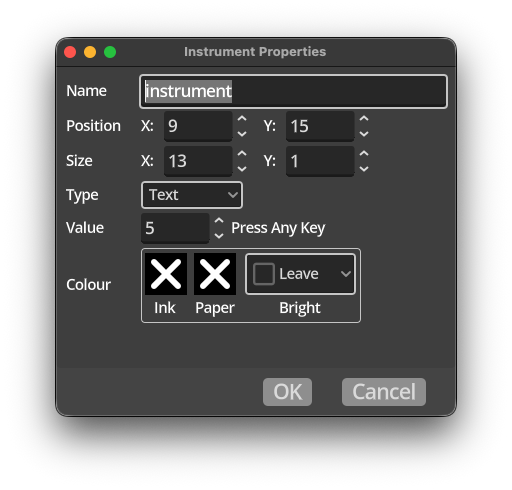
The Instrument Properties dialog is shown when double clicking on an instrument or clicking the instrument properties button. This is where you can modify the various properties of an instrument.
- Name
- The name of the instrument. This is used in logic for example when selecting to update an instrument value, the Set Instrument node will list the instrument names in a dropdown control to make it easy to select which instrument to update.
- Position:
- This is the position on the screen for the top left corner of the instrument. Instruments are placed on a grid of cells, each 8x8 pixels in size, so on the Spectrum, the range of these values are 0 to 31 in X and 0 to 23 in Y, any values beyond this range will result in the instrument being at least partially off screen.
- Size
- The size in cells of the instrument, as with the position, the instrument size is specified in terms of cells, each 8x8 pixels in size.
- Type
- The type of the instrument. An instrument will display its Value in different ways depending on the type of instrument. See Instruments for more information..
- Value
- The initial value of the instrument, the meaning of the value depends on the instrument type.
- Color
- These controls allow you to override the default colour information defined by the screen. Ink and paper can be specified separately or ignored, choosing the black colour with an "X" indicates that the instrument should not change the default for ink or colour and instead use the value specified in the screen. The brightness value can on or off, only if one of ink or paper is specified.
Assets Panel
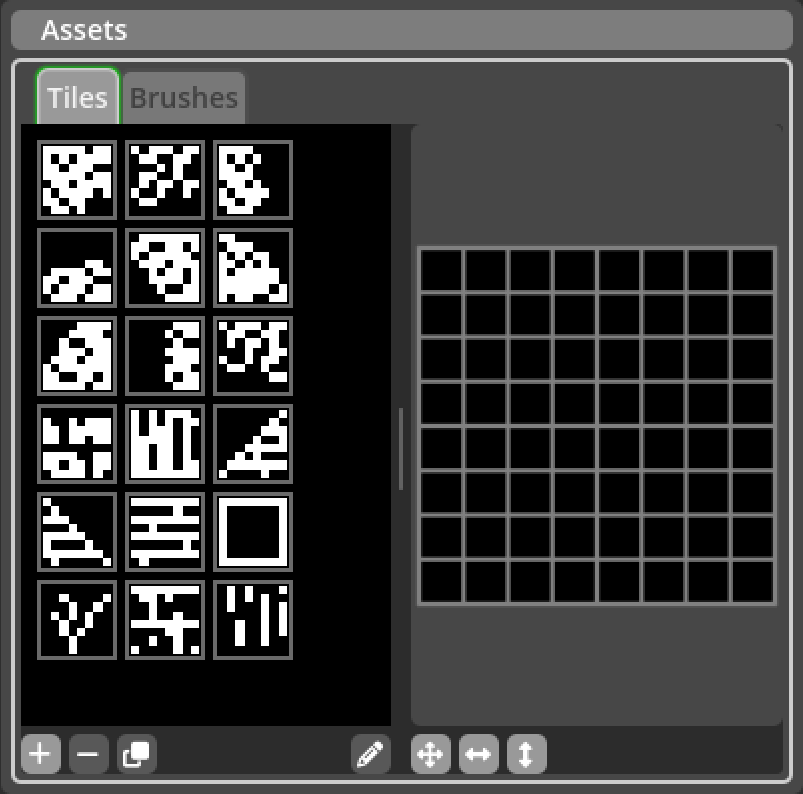
The Assets Panel provides access to assets that can be placed in the screen editor view in addition to Instruments. It is a common element used in more than one editor in Kwyll, and as such has its own separate section of the documentation here.
Main Area
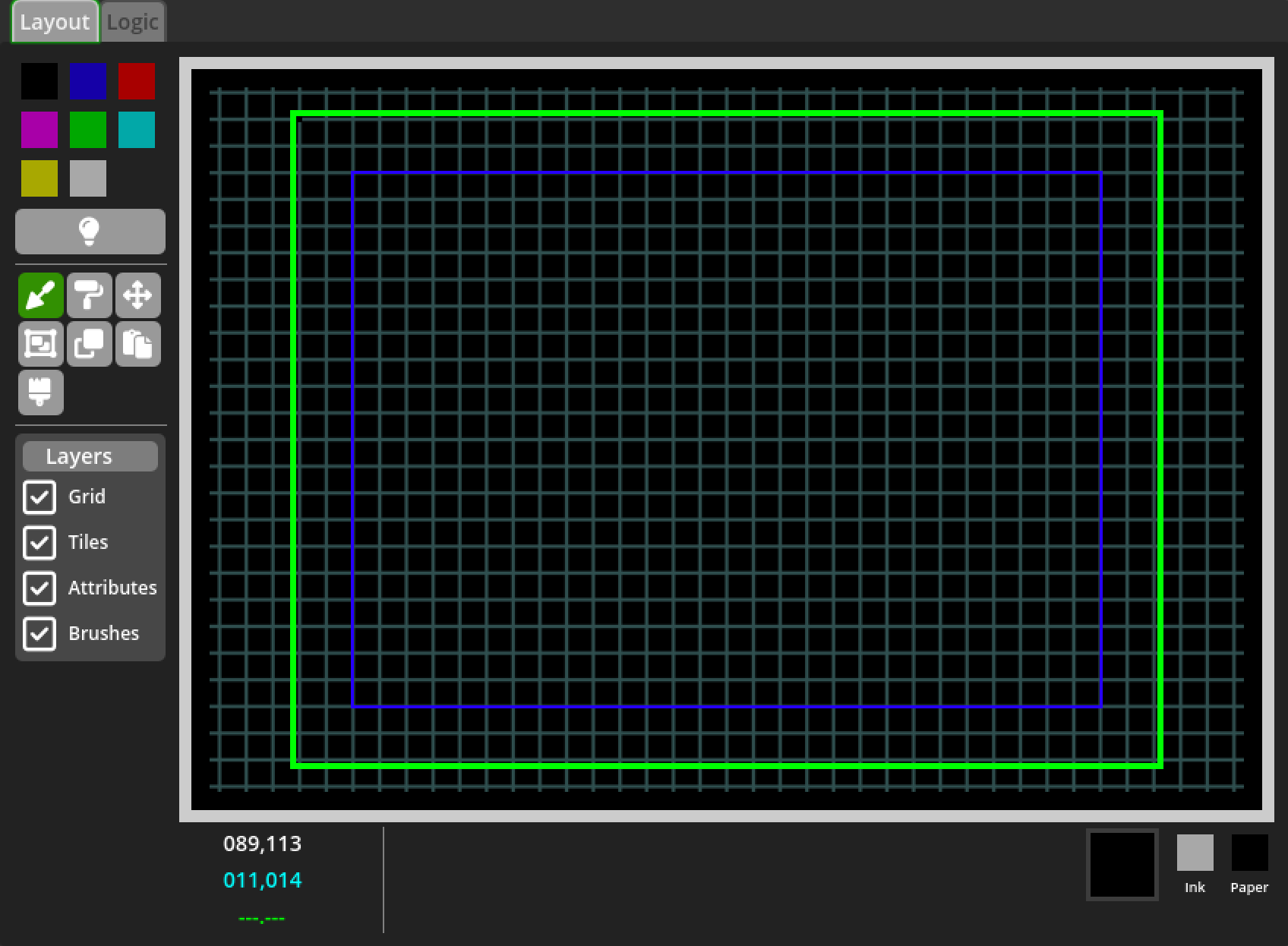
The rest of the Screen Editor is taken up with the main area, where the majority of the editing of a Screen takes place. It consists of two tabs, Layout and Logic. The Logic tab is a standard Logic Editor component that is used to edit logic that applies to the current room, see Logic for more details.
The Layout tab contains the screen layout editing tools. It consists of two parts, a standard Tilemap Editor, and layered on top of it a specific set of editing features for Screens.
Layout
The screen Layout Editor works as a set of additional tools that operate in the same space as the Tilemap Editor. It provides visual tools for interactively placing screen elements such as Instruments and the Game Window.
An Instrument is represented on
the grid as a yellow rectangle with a small triangle in the bottom right corner
 . You can click and drag
the instrument on the grid, it will automatically snap to the grid cells of 8x8
pixel increments. By carefully clicking on the small triangle in the corner,
you can drag out the rectangle to change its size, again, it will automatically
snap to the grid.
. You can click and drag
the instrument on the grid, it will automatically snap to the grid cells of 8x8
pixel increments. By carefully clicking on the small triangle in the corner,
you can drag out the rectangle to change its size, again, it will automatically
snap to the grid.
If the screen being edited has the Game Screen flag set in the properties, a blue rectangle will show to represent the Game Window. This element does not have a resize handle (triangle), as it's not possible to resize the game window in a screen, the game window size is fixed on all screens, the only way to modify the game window size is in the Settings dialog. However, the game window can be positioned independently on each screen it is used, so dragging the blue rectangle representing the game window works in much the same way as an Instrument, it will also snap its position to the grid.