Object Instances
An Object Type does not contribute to the game iself, it just defines what an object looks like and what it can do. Think of it as a template or blueprint for a particular type of object. The blueprint isn’t actually an object, it’s a description of certain properties that actual objects of this type will share in common. As an analogy, think of a car, the blueprint for the car is the Object Type, but it’s not actually a car. When a car is built from the blueprint, that is the Object Instance, it will have certain properties common to all cars, 4 wheels, steering, an engine, etc., these are the properties defined by the Object Type. Each manufactured car, however, can have a different colour, a different interior material, different wheels, different trim, these are the properties that are stored with each instance to "specialise" that particular car. In Kwyll, the unique properties for each instance include a position, colour information, and values for the variables described in the Object Type. Object instances can be created in Rooms and on the Map.
Changing a variable value in object logic changes the value on the particular instance of that object that is running the logic. For example, imagine you have an Object Type "Enemy" with some logic that includes a variable "health" and in the logic for that Object Type you reduce the health variable value each time it is hit by a missile from the player. If you create two instances of that Object Type, each instance will have its own value for the "health" variable, when a missile hits the first enemy object, and the shared logic executes and reduces the "health" of the enemy, it is modifying only the value stored on the first instance, the value on the second enemy is not changed. Similarly, when a missile hits the second enemy, its health value is reduced, and the health of the first enemy is not changed.
Objects can be used in the following ways.
-
Map Objects - these are created in the Map Editor and are constant throughout the game, they will always exist independent of which Location is currently shown, and will be drawn, if their position puts them on screen, and their logic will be run, if they are flagged as "Active".
-
Room Objects - these are in each Room Type, created in the Room Editor, and will only be visible and active while in a Location that is an instance of that Room Type. It’s worth noting that when exiting a room that contains Room Objects, the data used by the Kwyll library for those objects, such as memory for a Sprite etc. will be freed, reducing the overhead for both memory and performance, so it is advisable to use Room Objects where appropriate over Map Objects.
It is important to be aware that Room Objects are unique to a Room Type not a location. So, if you move or otherwise change a Room Object while in one particular location, when entering another location that is also an instance of that same Room Type, the changes will affect that location too. As such, when using Room Objects, it is a common pattern to have a "Room Entered" logic trigger on the Room Type that configures the Room Objects on entry if you want some specific behaviour per location. -
Dynamic Objects - these are not created in an editor during your game creation, they are instead created during the game using the Spawn Object node, and can be destroyed using the Kill Object node. They are in all other respects similar to Map Objects, they are not constrained to a particular Room Type, and will continue to exist across changes in Location until they are removed.
Object Properties
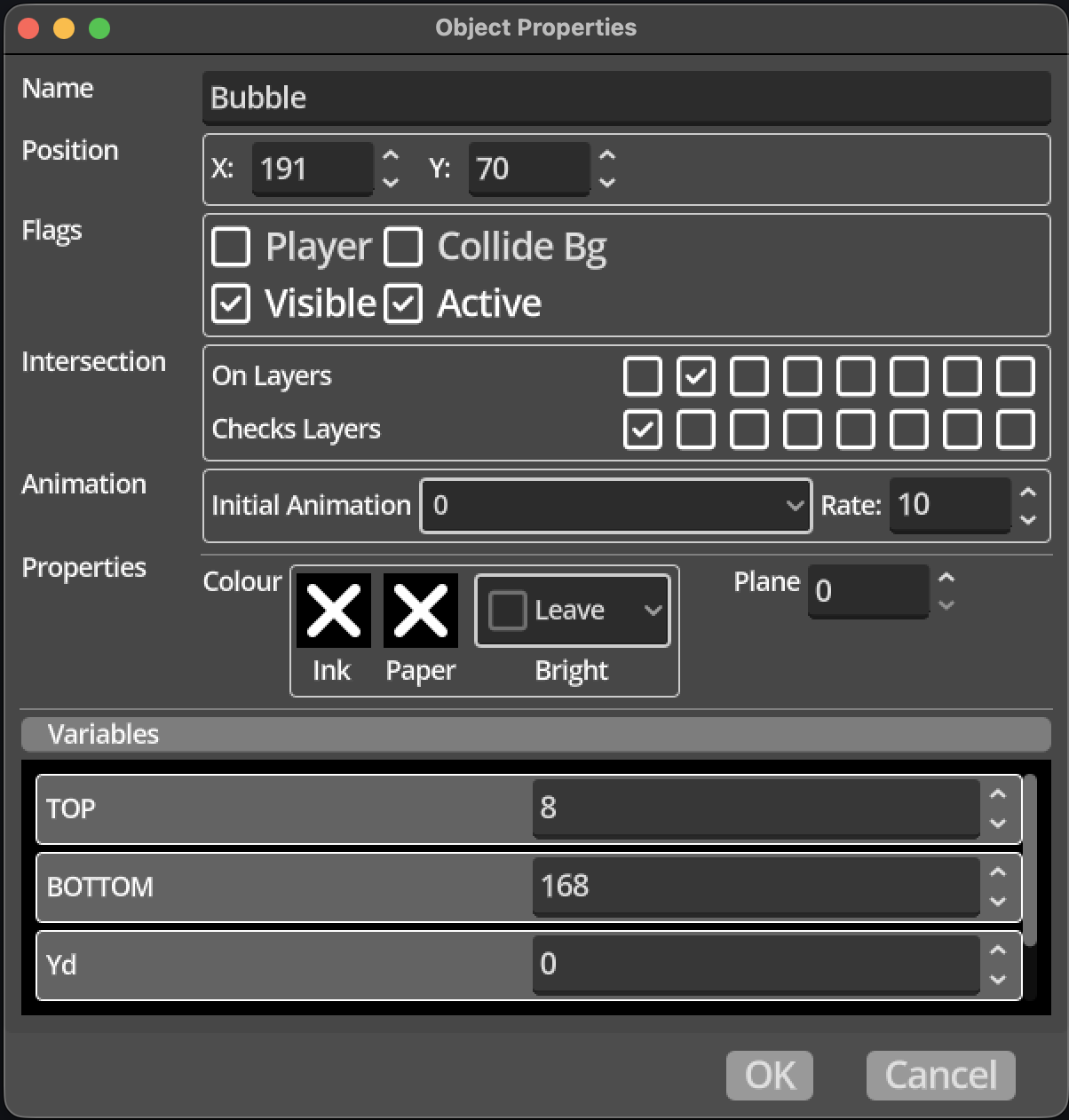
Each object instance has a number of properties that influence how the object works in the game. These properties are unique to each object instance, unlike the shared properties that all instances of a particuler Object Type have such as sprite animations and logic.
-
Name - a meaningful name for this particular object instance.
-
Position - the position of the object as an X and Y coordinate. Where this places the object depends on the type of object instance. A Global or Dynamic object will have coordinates that represent a position on the Map, while Room objects will have coordinates that represent a position within the room, irrespective of which location and where that location is on the Map. This must be considered when using logic to change the position of objects, and to check things like which tile is at a location related to an object.
-
Flags - used to define the behaviour of the object.
-
Player - if the player flag is checked, the object will check if it is off screen as it is moved, and if so, whether to move to a new location on the Map. This is useful to make it simple to implement a game where rooms connect perfectly on the Map, and moving out of one location should naturally result in moving to the neighbouring location, without having to manually switch location in logic.
-
Collide Bg - if this flag is checked, the object will be checked against the collision information assigned to each tile in the tile map. If a tile’s collision information indicates an object cannot pass through a side, the object will be prevented from doing so.
-
Visible - if this flag is checked, the object’s sprite will be drawn if it is on screen. If it is cleared, it will not be drawn, but it will still interact with other objects, and its logic will still operate.
-
Active - if this flag is checked, the object will be considered when checking if objects intersect, and whether the Object Hit trigger is fired when they do.
-
-
Intersection - Kwyll can check if objects are intersecting each other and trigger logic when they do. In order to limit how much work is done to do this checking, Kwyll implements a layering system for objects. Careful use of this is imperative to limit the performance impact of intersection testing. The layering system works by marking each object as "on" one of the 8 possible layers, and defining which other layers it should check for intersections with. When checking a pair of objects, A & B, for intersection, Kwyll will only consider pairs where either object A is on a layer that object B is checking for, or object B is on a layer that object A is checking for. This gives a great deal of flexibility in limiting which things to check. For example, enemies can be be put on their own layer, and that layer is not included in their "checks" layer list, which would mean Kwyll will never bother checking for intersections between two enemies.
Use the "Performance" tab of in the Simulator, to monitor how many intersection pairs are being checked, a good way to improve the speed of your game is to reduce that number as much as possible with careful use of the layers. -
On Layers - this defines which layer(s) the object is considered to exist on. An object can be on multiple layers, for example, you may decide that layer 2 is for collectibles, and layer 3 is for things that hurt enemies. An object can be placed on both, meaning the player can collect it, and if an enemy object touches it, it can be hurt.
-
Checks Layers - this defines which other layers to check for intersection with. When checking if a particular object is intersecting, only objects that are on one of the layers defined here will be considered.
-
-
Animation - these properties control the sprite animation of the object. If an Object Type has sprite animations configured, you can choose which animation is playing by default, and at what rate. The rate is defined as the number of game frames between changes in a sprite frame. So, if the game is running at 50 frames per second, and the rate is set at 25, it will animate at 2 frames per second, waiting 25 game frames before updating the sprite frame.
-
Properties - this section contains properties that are specific to each platform, such as colour and plane for the Spectrum.
-
Colour - allows you to define the colour of an object in terms of ink, paper and brightness. Each property can be specified, or left to the default. The method of identifying the default colour is described in Colour Priority.
-
Plane - When a sprite is drawn to the screen it is possible that there will be other sprites in the same place on the screen, so there has to be a way to decide which one is drawn first. This is the role of planes. Think of planes as "layers", with the smallest number being closest to the screen, and increasing numbers going further away. So an object that has its plane set to 1, will have its sprite drawn over the top of another object that has its plane set to 2, which in turn will drawn over another object that has its plane set to 5. This feature may be platform specific, check the details for your platform for details.
-
-
Variables - this area a will show a list of the variable names that are defined on the Object Type for this object instance. It allows you to set the values of those variables at the start of the game. This is particularly useful to enable configuration of objects that share a common type, but have specific behaviour per instance. For example, an enemy object might have logic that makes it patrol horizontally or vertically between two points in the room. Defining variables to indicate which direction and the minimum and maximum position in that axis means you can easily set those per instance to create variations of an enemy type very efficiently.